In this article
Actions Reference
The THEN section defines what happens when a rule is triggered. You can select multiple actions in one rule, such as sending an email, adding a tag, and moving the candidate to another stage.
Available Actions
- Send Email Template Send a predefined email template to the candidate.

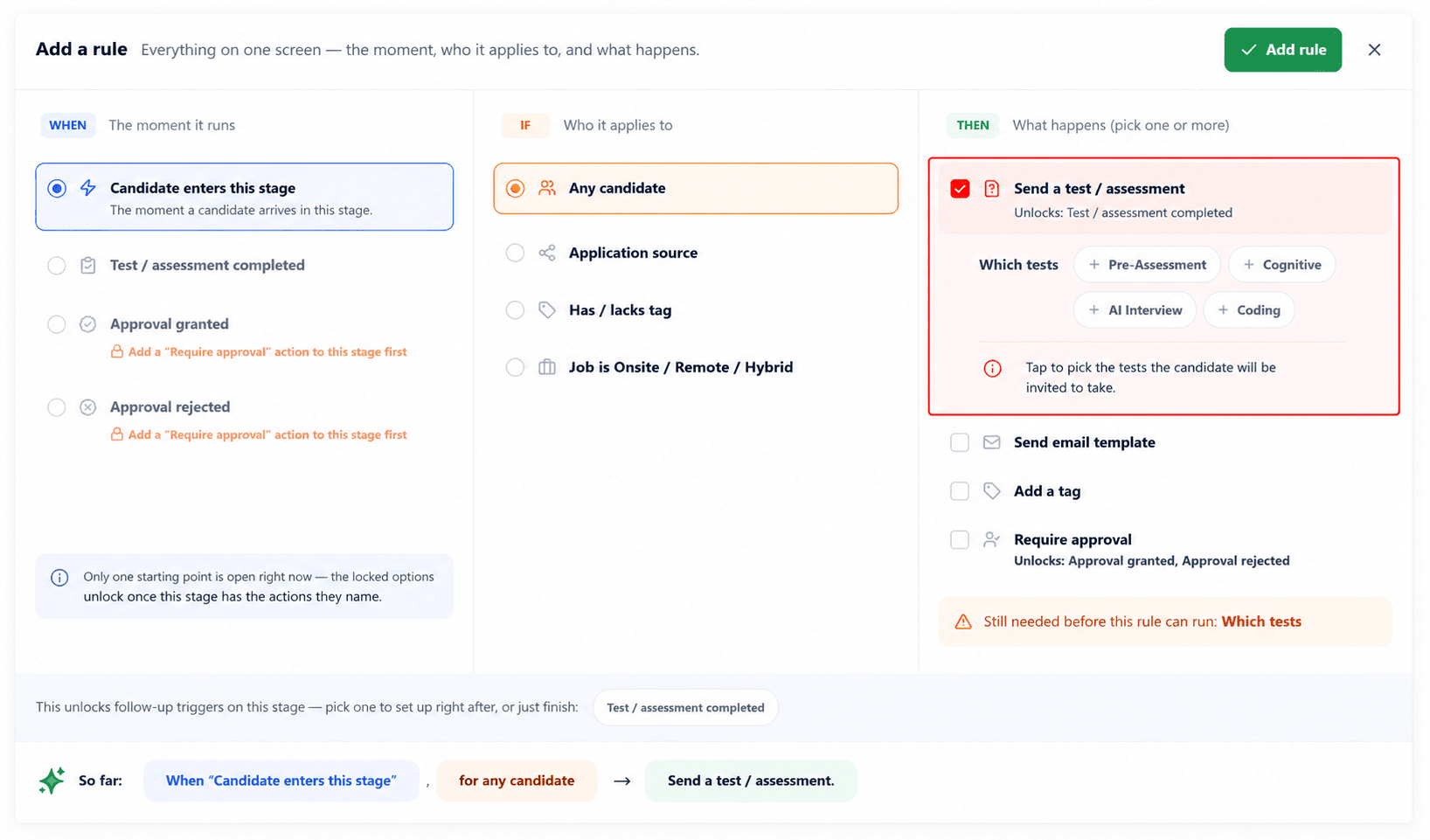
- Send Test or Assessment Invite candidates to complete assessments such as Pre Assessment, Coding, Cognitive, or AI Interview. Multiple tests can be included in one invitation.
- Move to a Stage Automatically move the candidate to another stage in the same pipeline. Rules in the new stage can then run automatically.

- Move to Rejected Move the candidate directly to the Rejected stage.

- Add a Tag Add one or more tags for filtering, searching, or talent pool management.

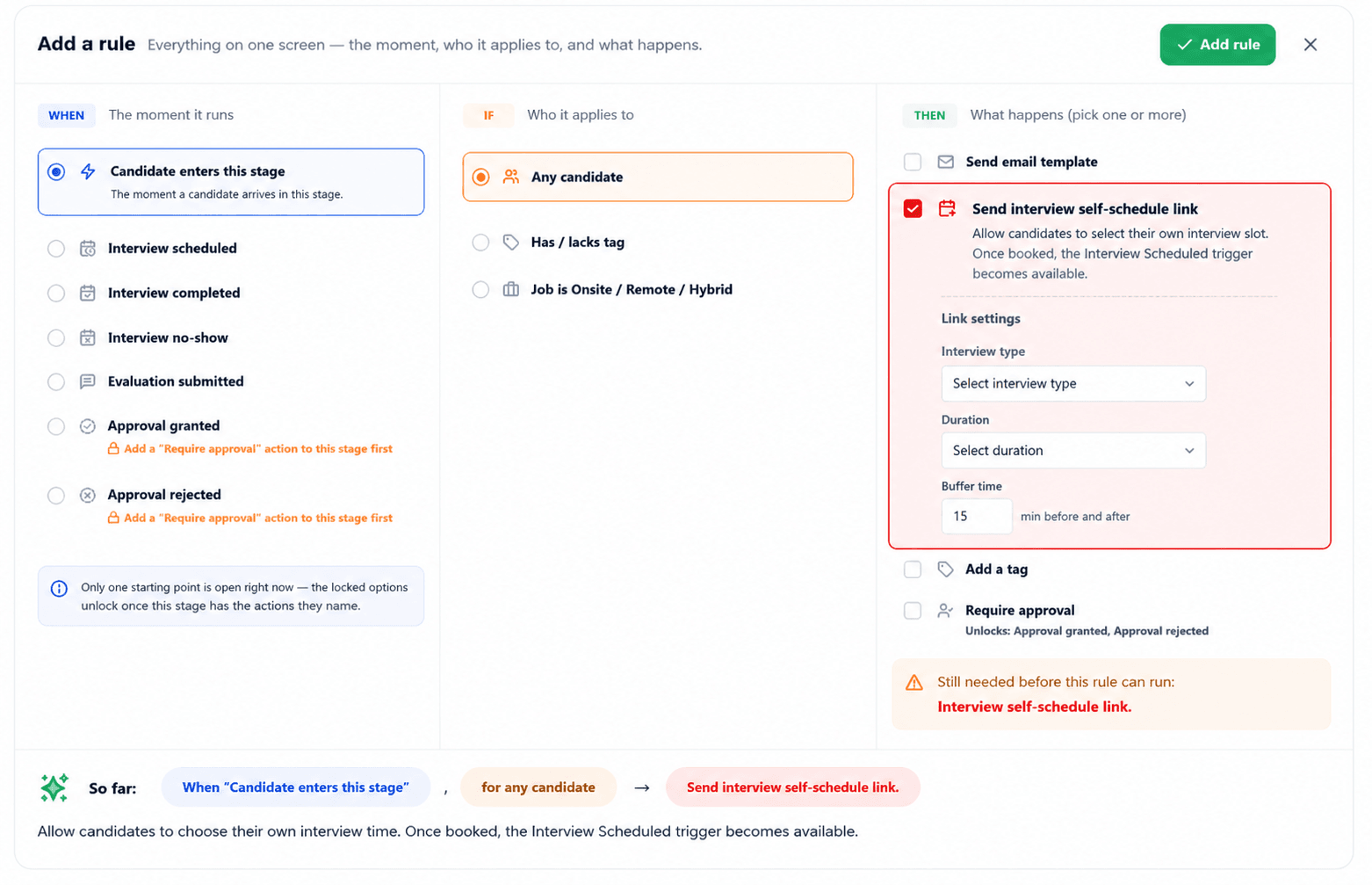
- Send Interview Self Schedule Link Allow candidates to select their own interview slot. Once booked, the Interview Scheduled trigger becomes available.
- Request Documents Ask candidates to upload required documents such as identification, certificates, experience letters, or references.

- Verify Documents Check uploaded documents against the candidate profile and flag mismatches for manual review.
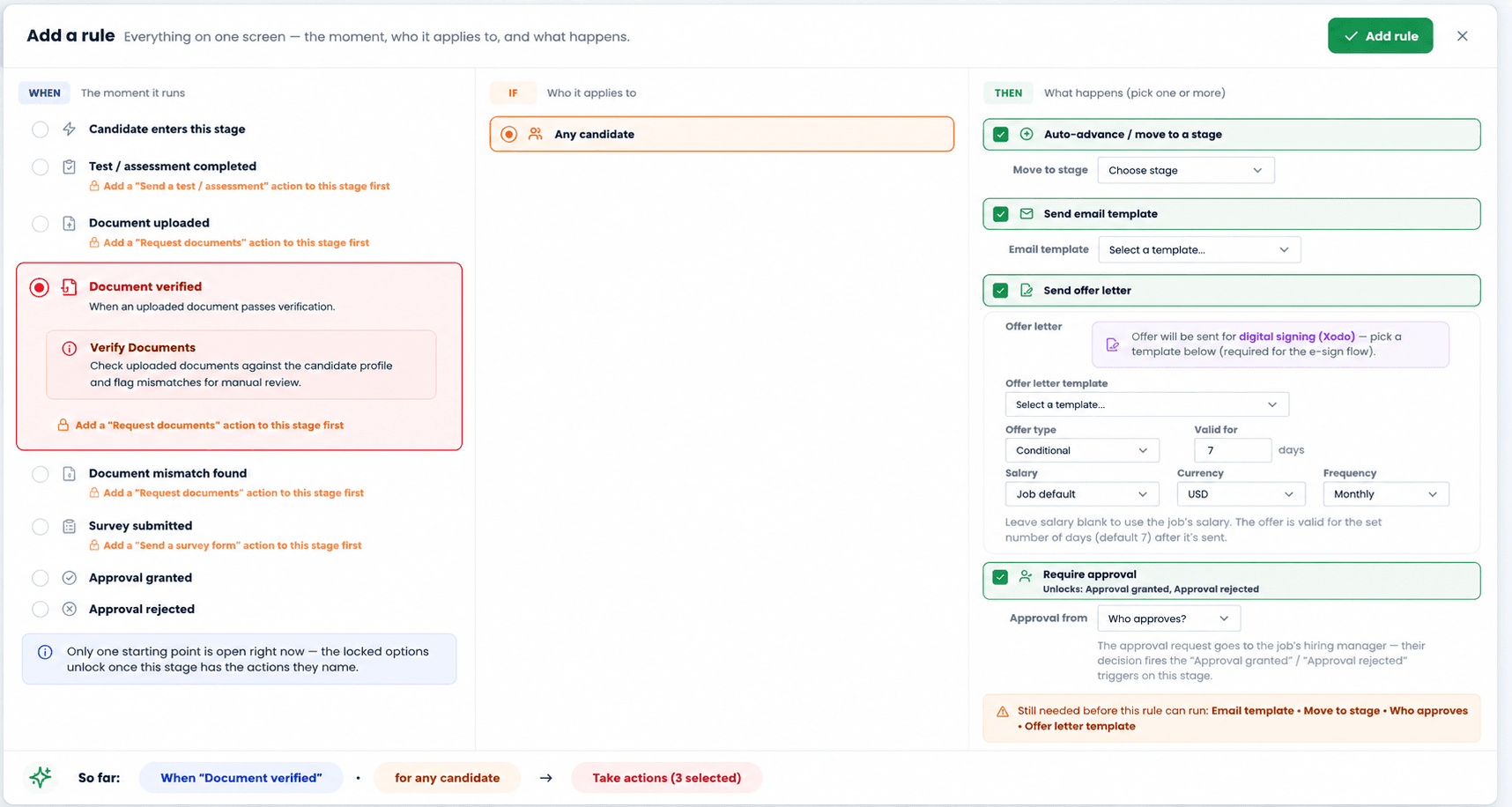
- Send Offer Letter Generate and send an offer using an offer letter template. Configure the offer type, validity, salary, currency, and payment frequency.

- Require Approval Send the candidate for approval by a hiring manager or external approver. The decision can trigger the next rule.

- Send Survey Form Send a form to candidates and define a response period. This action is available on Custom stages.

Important
The available actions depend on the selected stage and trigger. Some actions may only appear when they are relevant to that stage or event.
Pro Tip
Combine multiple actions in one rule to automate the next steps of your hiring workflow.