In this article
Each recipe below is a small set of rules you can build in a few minutes. Build them on the stage named in the heading, then click Save Pipeline.
Auto Shortlist Strong Applicants
On the Applied stage, when a candidate's profile score is calculated, the rule checks whether the score is at least 75. If the condition is met, Accelerec automatically moves the candidate to the Shortlist stage.
Everyone who scores 75 or above moves on by themselves; the rest wait for your team. Add a second rule with is less than 40 → Auto-advance / move to a stage → Rejected if you want the bottom of the list cleared automatically too, landing on Rejected sends your rejection email.
Note
Screen with a test, then act on the result
On the Shortlist stage, two rules.
- Rule 1: Send the Test
When a candidate enters the Shortlist stage, send them a Pre Assessment along with a shortlisted email. This starts the assessment process and prepares the candidate for the next stage.
- Rule 2: React to the Score
Once the candidate completes the assessment, check their assessment score. Candidates scoring 60 or higher are automatically moved to the Interview stage, while those scoring below 60 can be moved to Rejected using an additional rule.

Pro Tip
Let candidates book their own interview
On the Interview stage, two rules
- Rule 1: Send Interview Schedule Link
When a candidate enters the Interview stage, automatically send them an interview self schedule link so they can choose a suitable time slot.
- Rule 2: Confirm the Interview
Once the interview is scheduled, automatically send an Interview Confirmed email to the candidate. This keeps the candidate informed and reduces manual follow up for your recruitment team.

Move on the interviewer's verdict
On the Interview or Evaluation stage, two rules
- Rule 1: Move High Scores Forward
When an interviewer submits an evaluation, candidates with an assessment score of 4 or higher are automatically moved to the Offer Sent stage.
- Rule 2: Reject Low Scores
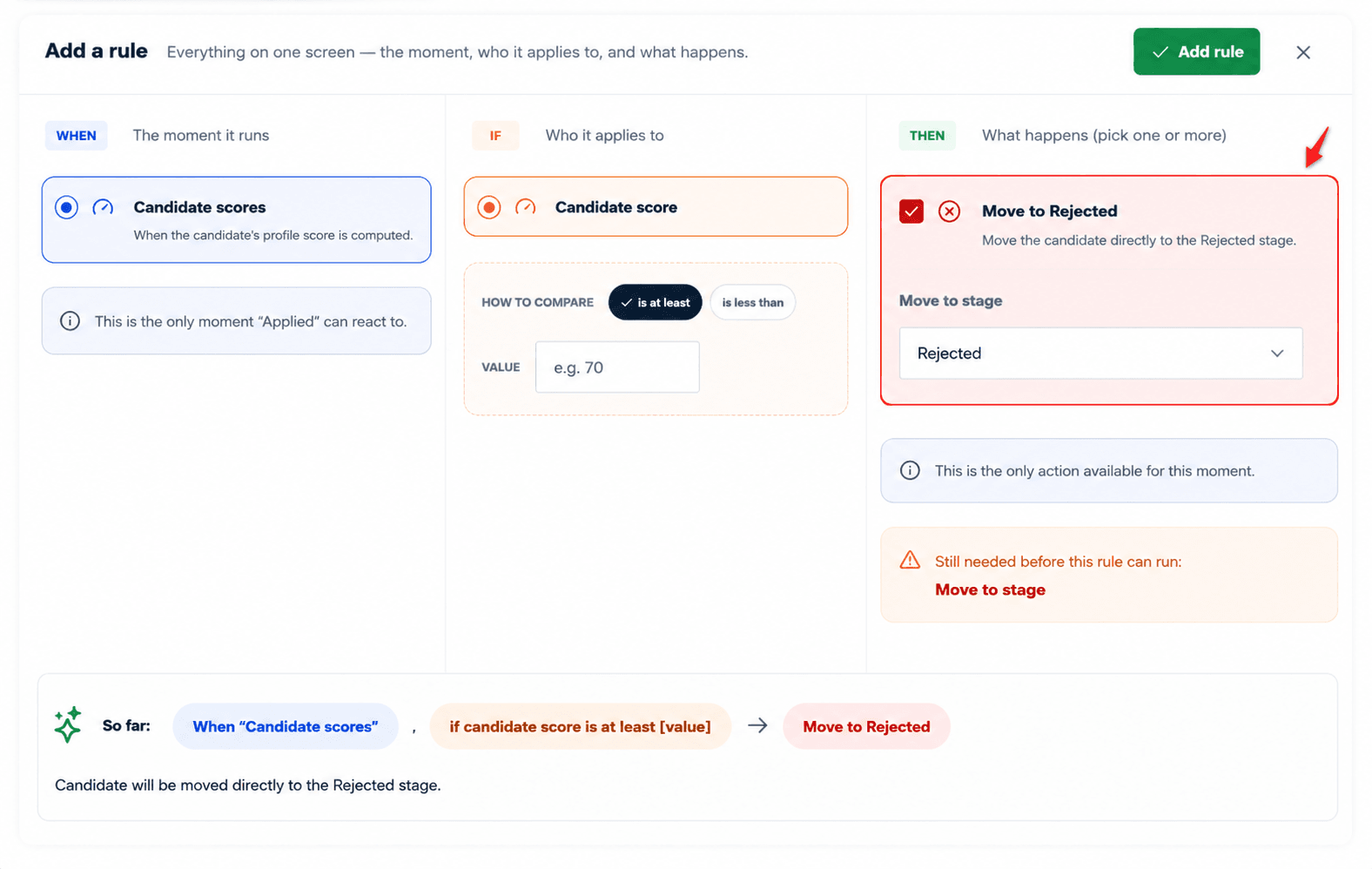
When an evaluation is submitted, candidates with a score below 2 are automatically moved to the Rejected stage. Candidates scoring between 2 and 3 remain in the current stage for manual review.
Get sign-off before the offer
On the Offer Sent stage, two rules
- Rule 1: Request Approval
When a candidate enters the Offer Sent stage, automatically send an approval request to the Hiring Manager before proceeding with the offer.
- Rule 2: Send the Offer
Once the approval is granted, automatically send the Offer Letter to the candidate using the selected template, with a 7 day response period.

Collect documents before the offer goes out
On the Offer Sent stage, two rules
- Rule 1: Request Documents
When a candidate enters the Offer Sent stage, automatically request the required documents, such as the Degree Certificate and Experience Letter.
- Rule 2: Verify and Send Offer
Once the documents are uploaded, automatically verify the documents and send the Offer Letter after successful verification.

Handle the offer response
On the Offer Sent stage
- Rule 1: Handle Accepted Offers
When a candidate accepts the offer, automatically move them to the Offer Accepted stage and add a Joining tag for easy tracking.
- Rule 2: Handle Rejected Offers
When a candidate rejects the offer, automatically move them to the Offer Rejected stage.
Pro Tip
Treat sourced candidates differently
On the Shortlist stage
When a candidate enters the Shortlist stage, the rule can check their Application Source and send the appropriate email. Candidates who applied through the Seeker Portal can receive a shortlisted email, while candidates added by recruiters through the Recruiter Portal, Talent Pool, or Talent Discovery can receive different communication suited to their source.
Ask for feedback with a survey
On a Custom stage (surveys are available there)
- Rule 1: Send the Survey
When a candidate enters the Custom stage, automatically send them the survey form and give them 7 days to complete it.
- Rule 2: Process the Response
Once the candidate submits the survey, automatically add the Survey Done tag and move them to the next stage.
