The Requisitions module enables Department Users to create and submit hiring requests for open positions within their department. Users can define the department, select the requisition type, enter job details, and submit the requisition for approval. This structured workflow ensures every hiring request is reviewed before moving to the recruitment process.
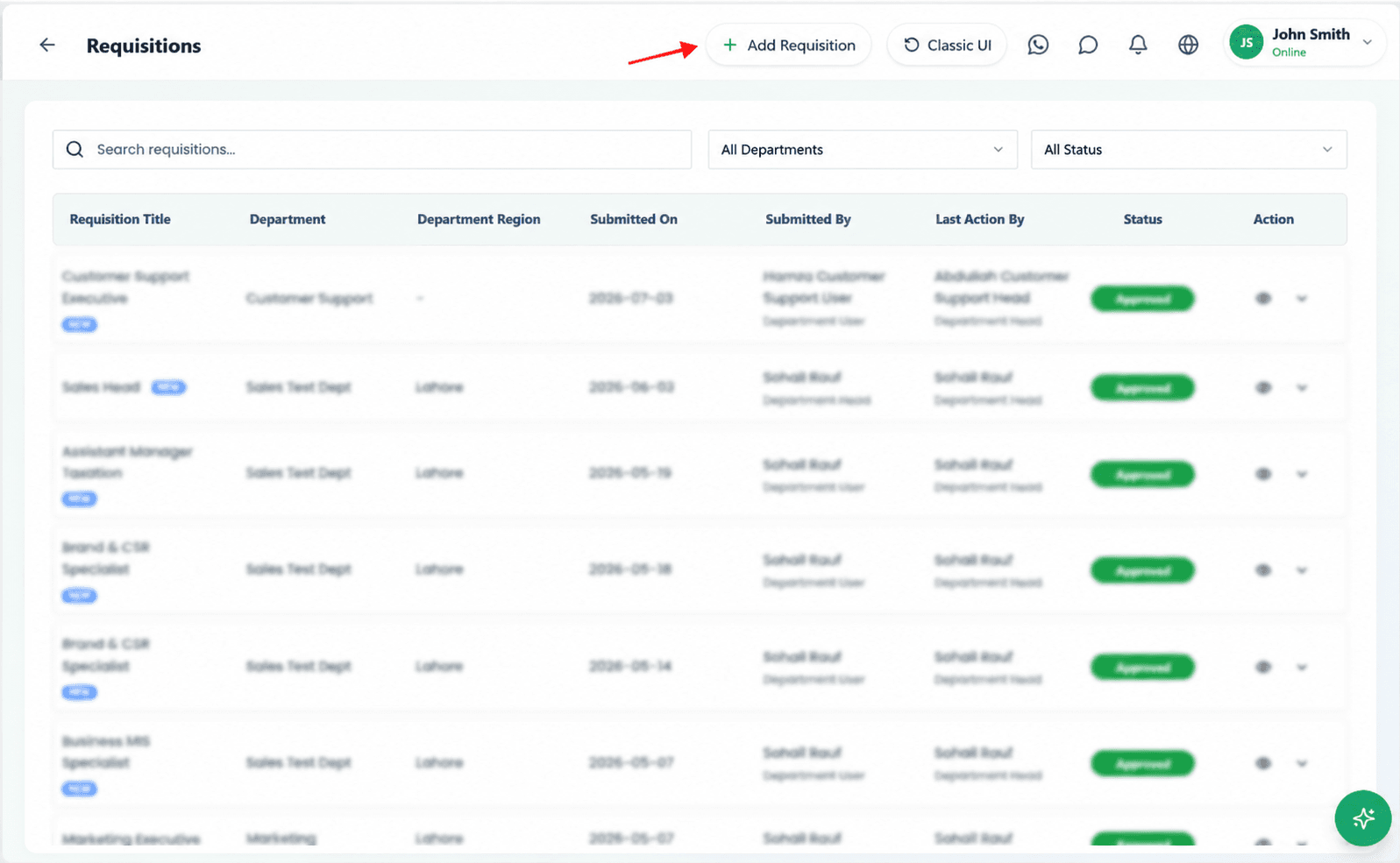
- Navigate to Requisitions from the main menu.
- Click Add Requisition at the top.
- Select the Department for which you are creating the requisition.
- Choose the Requisition Type:
-> New Position – Create a requisition for a newly approved role.
-> Replacement – Create a requisition to replace an existing employee.
- If Replacement is selected, choose the Ex-Staff Name and Ex-Staff Designation.
- Complete the Basic Information section by entering Job Title, Number of Positions, and Closing Date.
- Fill in the remaining required sections (if applicable), such as job requirements, skills, compensation, and approval details.

Use the action buttons at the top as needed:
- Browse Templates to use a predefined requisition template.
- Reset to clear all entered information.
- Save Draft to save the requisition and continue editing later.
- Submit for Review to send the requisition through the approval workflow.

The Requisitions page lets you track the progress of every hiring request. A requisition moves through different statuses during the approval process, allowing recruiters and hiring managers to monitor its progress from submission to final approval.

Pro Tip
- Click the View (Eye) icon next to any requisition to open its details. The details panel displays key information such as the department, submitter, requisition type, submission date, and the most recent activity on the requisition.
- The Activity Log records important actions taken throughout the requisition workflow. Each entry shows who performed the action, their role, the date and time, the status transition, and a brief description of the update, providing a complete audit trail of the requisition.

- When a requisition is no longer required, you can close it directly from the requisition details window. Enter an optional comment explaining the reason for closing, then click Close Requisition. The comment is saved as part of the requisition history for future reference.

Note