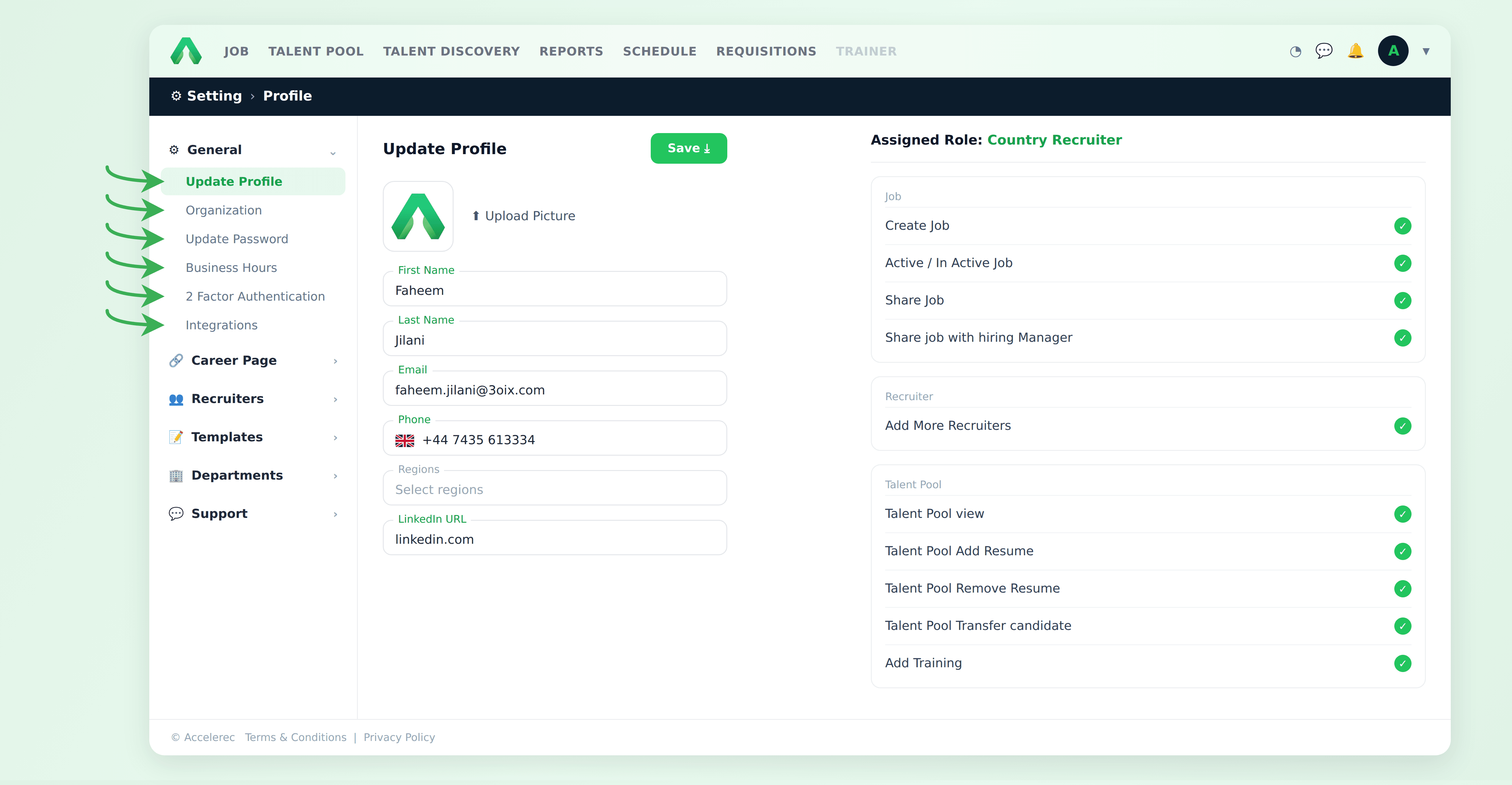
Manage your personal account, organization details, and security preferences.
1
Update Profile
- Navigate to Settings from your dashboard.
- Go to the General section and click "Update Profile".
- Edit your personal details (name, email, phone, profile picture, etc.).
- Click "Save" to apply changes.
2
Organization
- Under General, click "Organization".
- Update your organization details (company name, logo, address, website, etc.).
- Save your changes to reflect them across the platform.
3
Update Password
- Click "Update Password" under General settings.
- Enter your current password.
- Enter and confirm your new password.
- Click "Save" to update your credentials.
4
Business Hours
- Click "Business Hours".
- Set your organization's working days and hours (e.g., Mon–Fri, 9 AM–6 PM).
- Save the settings. These hours will be reflected in scheduling and notifications.
5
2-Factor Authentication
- Click "2 Factor Authentication".
- Toggle 2FA On.
- Choose your preferred verification method (SMS, email, or authenticator app).
- Follow the on-screen instructions to complete setup.
- Save changes, and your account is now secured with an extra layer of protection.
6
Integrations
- Click "Integrations".
- Browse available integrations (LinkedIn, Facebook, Instagram, Twitter, Zoom).
- Click "Connect" next to the tool you want to integrate.
- Authorize the connection and configure settings as needed.